A wall printer usually does not run from one single program.
Most professional wall printing workflows use three software layers:
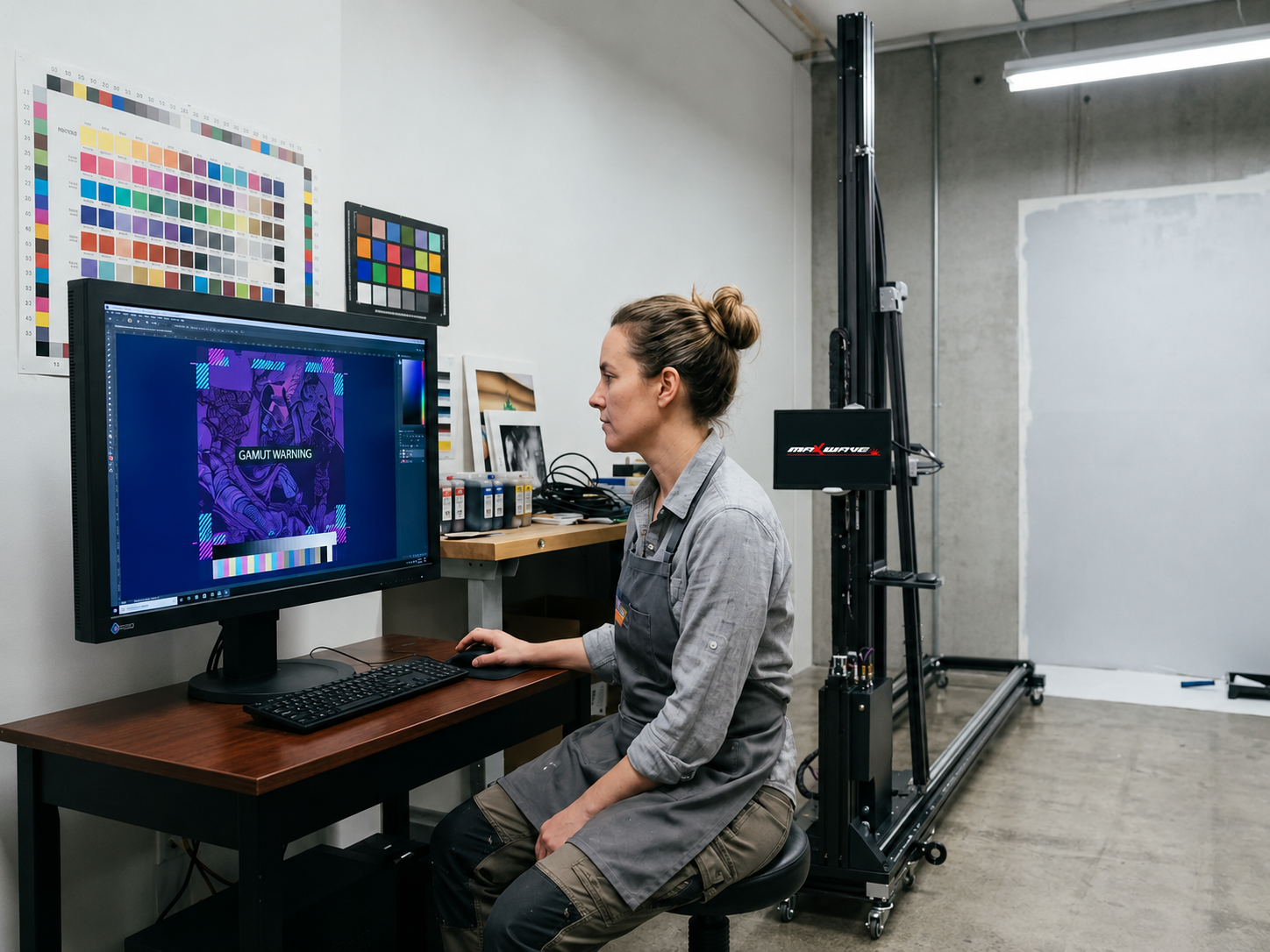
Design software prepares the artwork.
RIP software converts the artwork into printer-ready data and manages color, resolution, print modes and white ink.
Printer control software operates the machine itself, including positioning, calibration, sensors, carriage movement and job execution.
For a first-time buyer, the most important thing to understand is that Photoshop or Illustrator alone normally cannot replace RIP and machine-control software.
The typical workflow is:
Artwork → RIP software → Printer control software → Wall printing
Some manufacturers combine parts of this workflow into one interface, while others provide separate RIP and control programs.
For anyone buying a wall printer, the important question is not simply which software name appears on the specification sheet. You need to know whether the complete software package supports your files, white ink, color workflow and actual machine configuration.
Software Layer | Main Purpose | Common Tasks |
|---|---|---|
Design Software | Prepare artwork | Resize, crop, edit, create graphics |
RIP Software | Prepare printer data | Color, ICC, passes, white ink, rasterization |
Control Software | Operate the machine | Positioning, sensors, calibration, printing |
1. What Software Does a Wall Printer Need?
Most wall printer owners will use three types of software, but only the RIP and printer-control layers normally communicate directly with the machine.
Design Software
Design software is where you prepare the customer's artwork.
Common options include:
Adobe Photoshop
Adobe Illustrator
CorelDRAW
Other image or vector editing software
You may use design software to resize artwork, crop images, clean backgrounds, prepare logos, adjust image quality and create white-ink areas where necessary.
The finished artwork is then exported into a format that the RIP can process.
However, design software does not normally control the motors, sensors or printhead of a wall printing machine.
This is why opening a JPG in Photoshop and clicking “Print” is usually not enough for a professional wall-printing workflow.
RIP Software
RIP stands for Raster Image Processor.
This is the software that converts your artwork into data the printer can actually use.
Depending on the machine, the RIP may control:
Final print size
Print resolution
Pass count
Color conversion
ICC profiles
Ink limits
CMYK output
White ink
Halftoning
Print direction
The RIP is therefore one of the most important pieces of software in the complete system.
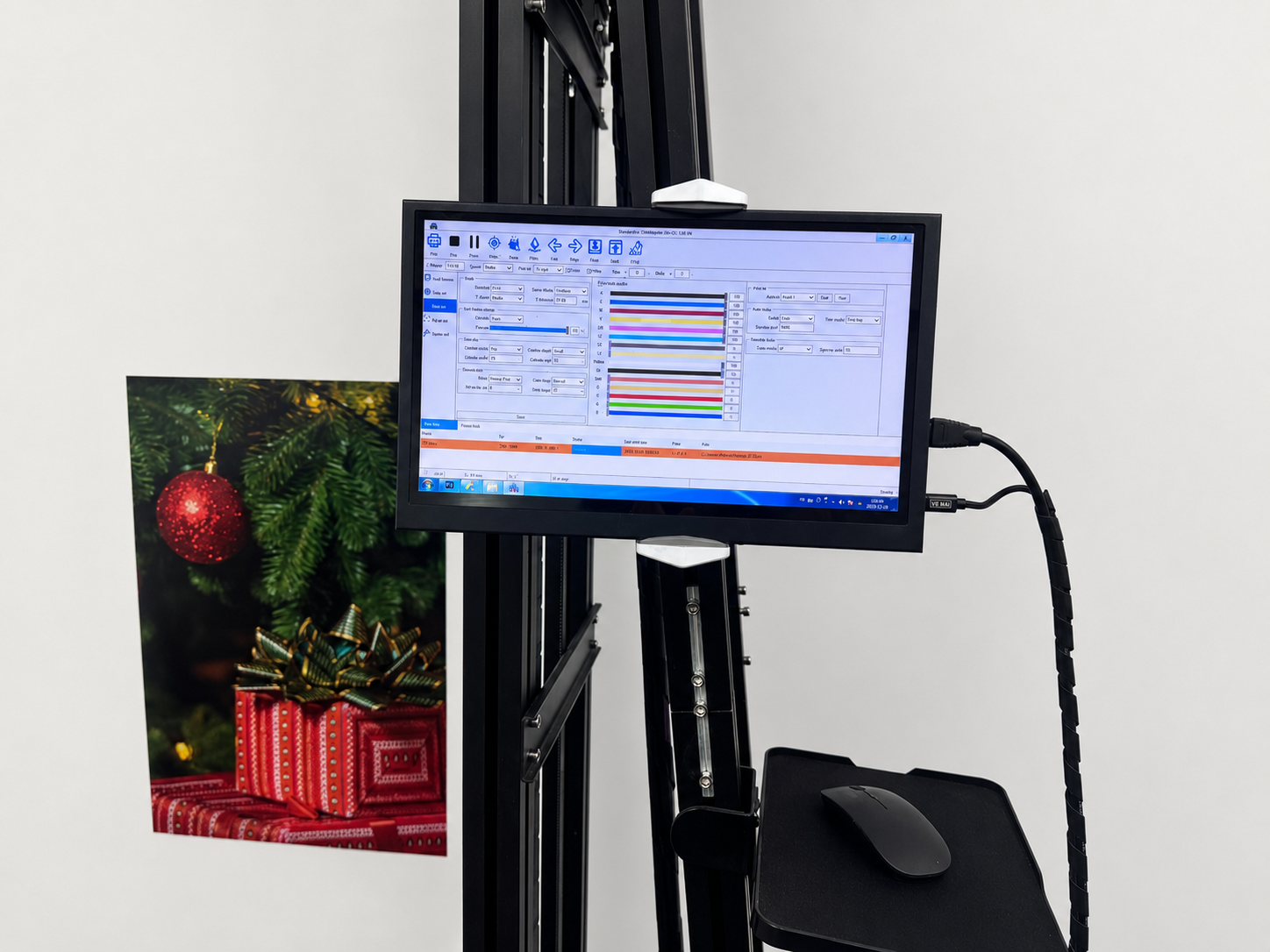
Printer Control Software
The printer control software operates the physical machine.
It may control:
Print starting position
Horizontal and vertical movement
Printhead operation
Wall-distance sensors
Calibration
Nozzle testing
UV curing
Pause and resume
Ink maintenance
Job progress
A vertical wall printer works next to a real architectural surface, so the control software has to coordinate much more than simply sending ink to a printhead.
The RIP prepares the job.
The control software executes it.
2. What Does RIP Software Actually Do?
RIP software sounds technical, but buyers mainly need to understand how it affects real printing jobs.
It Controls Print Size
Wall murals can be several meters wide or tall.
The RIP prepares the artwork for the actual output dimensions and printable area.
You should still create artwork with the correct proportions before sending it to the RIP instead of relying on extreme resizing at the final stage.
It Manages Color
An image on a computer monitor does not automatically look identical when printed onto a wall.
The RIP helps convert digital color information into the available ink channels.
ICC profiles and color settings become particularly important for:
Logos
Brand colors
Skin tones
Photographs
Gradients
Large commercial murals
If accurate color matters, ask the supplier to print one of your own files rather than judging the machine from prepared showroom artwork.
It Controls White Ink
If your wall mural printer supports CMYK + White, the RIP becomes even more important.
Dark walls and colored surfaces may need a white underbase beneath the CMYK image.
Depending on the workflow, the RIP may support:
White underbase
Spot white
White-only printing
Adjustable white density
White + CMYK
Layer-order control
Not every RIP handles white ink in exactly the same way.
If dark-wall printing is important to your business, ask the supplier to demonstrate the entire White + CMYK workflow using the exact software included with the machine.
It Balances Quality and Speed
Print quality settings usually influence production speed.
Higher-quality modes may use more passes and take longer.
Lower-pass modes may print faster but may not produce the same gradients or fine detail.
So when a supplier says:
“This machine prints 10 m²/h.”
ask:
“Which RIP mode and how many passes were used?”
That makes the speed number much more useful.
It Creates Printer-Ready Data
Once the RIP has processed the artwork, it creates the production data required by the machine.
The exact output format depends on the printer, controller and RIP combination.
That is why RIP software is not automatically interchangeable between all wall-printer brands.
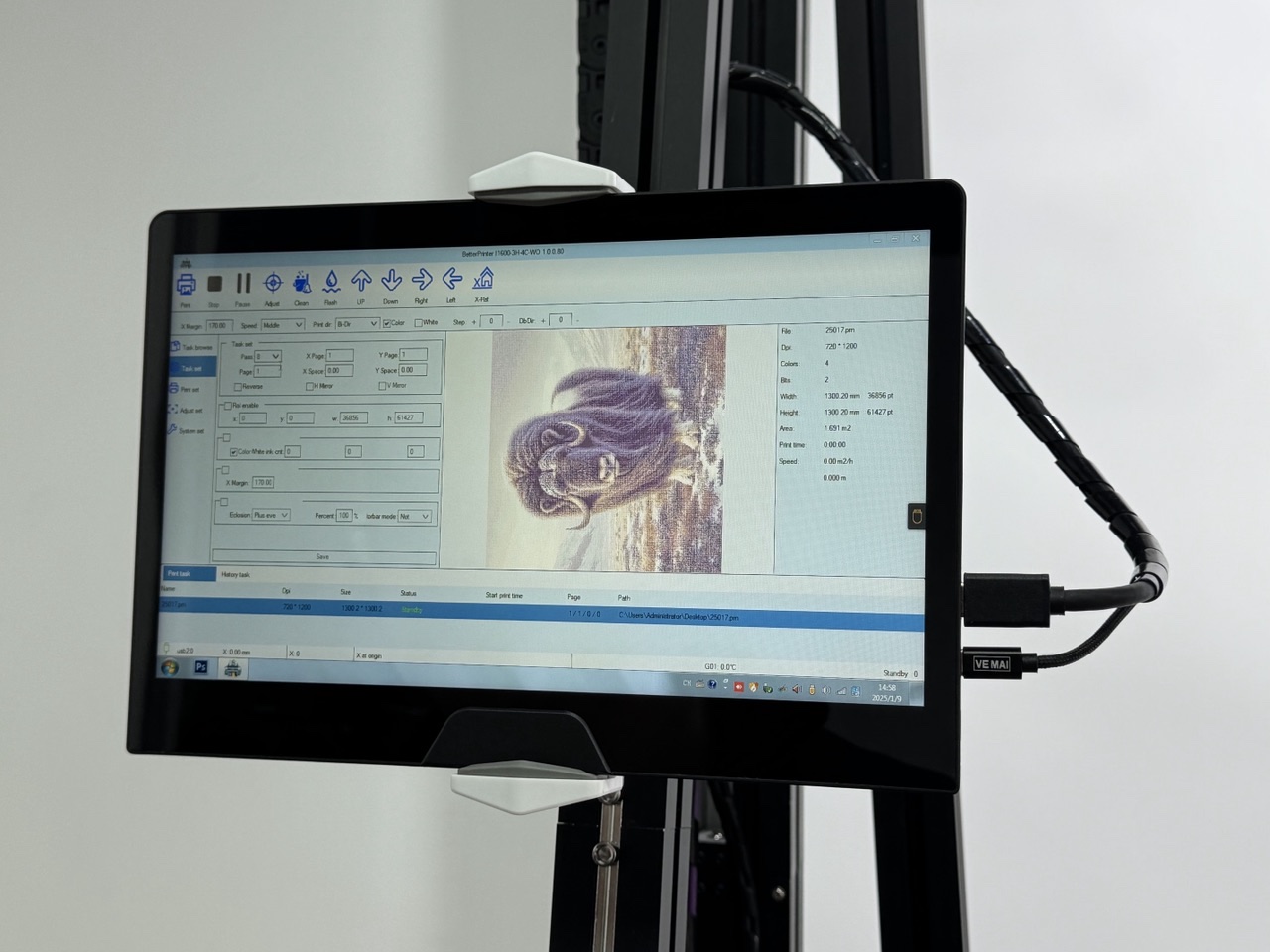
3. What Does Printer Control Software Do?
Once the artwork has been processed, the printer-control software handles the actual wall-printing operation.
Think about what happens when you arrive at the customer's site.
You position the machine.
You define the starting point.
You check the wall.
You run a nozzle test.
You confirm the printhead distance.
Then you start the mural.
Most of those physical tasks are managed through the control software.
It Handles Calibration
Accurate movement is critical for wall printing.
The software may provide calibration for:
X-axis movement
Y-axis movement
Bidirectional printing
Print origin
Image alignment
Printhead positioning
Sensor response
Incorrect calibration can cause:
Ghosting
Misaligned passes
Gaps
Overlapping
Image distortion
These are machine-control problems, not Photoshop problems.
It Works With Wall Sensors
A wall is not a perfectly flat sheet of printing media.
Plaster, brick, concrete and textured walls can vary in depth.
Some professional wall printer control systems work with distance sensors to help the machine maintain a safe relationship between the printhead and wall.
This helps reduce:
Overspray
Blurry details
Head strikes
Distance-related print defects
The software and hardware therefore need to be designed to work together.
It Handles Maintenance Functions
Control software may also provide routine maintenance functions such as:
Nozzle tests
Cleaning cycles
Ink extraction
White-ink maintenance
Sensor checks
Error messages
Printhead configuration
When evaluating a printer, ask the supplier to show you these functions.
A demo should not only show:
“Click here to start printing.”
It should also show:
“Here is what you do when one color is missing.”
It Controls Pause and Recovery
This becomes important on large murals.
Ask what happens if the job is interrupted.
Can the operator pause and resume?
Can printing continue from a selected position?
What happens after a temporary power interruption?
Can a partially completed mural be recovered?
For a 20 m² commercial mural, these functions may matter more than another image-editing tool inside the RIP.

4. What Software Should You Check Before Buying?
For most buyers, the real question is not:
“Which RIP software is best?”
It is:
“Does the software included with this printer support the work I want to do?”
MainTop, FlexiPrint and other RIP solutions appear in many wall-printer packages, but a familiar software name does not guarantee compatibility with every machine.
Before purchasing wall printing equipment, confirm the complete software package.
Which RIP Is Included?
Ask for the exact:
Software name + version
Do not accept:
“Professional RIP included.”
The version matters for installation, compatibility, available features and future technical support.
Is the License Included?
Confirm whether the license is:
Permanent
Subscription-based
Hardware locked
Dongle-based
Limited to one PC
Transferable when a computer fails
This is particularly important for imported equipment.
If your PC fails two years later, you need to know whether the software can be installed on another computer.
Which File Formats Are Supported?
Ask which formats the supplier recommends for production.
Typical files may include:
TIFF
JPG / JPEG
PNG
PDF
EPS
Other formats supported by the specific RIP
Do not assume that because Photoshop can open a file, the RIP will process every feature correctly.
For example, white-ink workflows may require a specific file preparation method.
Does It Support White Ink?
For CMYK + White machines, ask the supplier to demonstrate:
White underbase
Spot white
White-only printing
CMYK + White
White-density adjustment
Do not simply accept:
“Yes, it supports white.”
Watch the complete process from artwork to printed sample.
Are ICC Profiles Included?
Ask whether the software package includes profiles for the actual machine and ink configuration.
This can help make color adjustment much easier, particularly for commercial customers with logos and brand colors.
Does the Supplier Support the Software?
This is one of the most important questions.
A direct wall printing system may be mechanically fine while the owner is unable to print because of a software or driver problem.
Ask whether technical support covers:
RIP installation
Control software
Drivers
ICC profiles
White-ink setup
Calibration
Computer replacement
Software reinstall
Remote troubleshooting
You want one supplier capable of supporting the complete workflow.
Can You Test Your Own File?
Before placing the order, send the supplier an actual customer-style file.
Ideally, include:
Photograph
Logo
Small text
Gradient
Dark areas
White ink if required
Then ask them to demonstrate:
Artwork → RIP → Print Data → Control Software → Nozzle Check → Positioning → Sample Print
That single test reveals far more than a long software specification sheet.
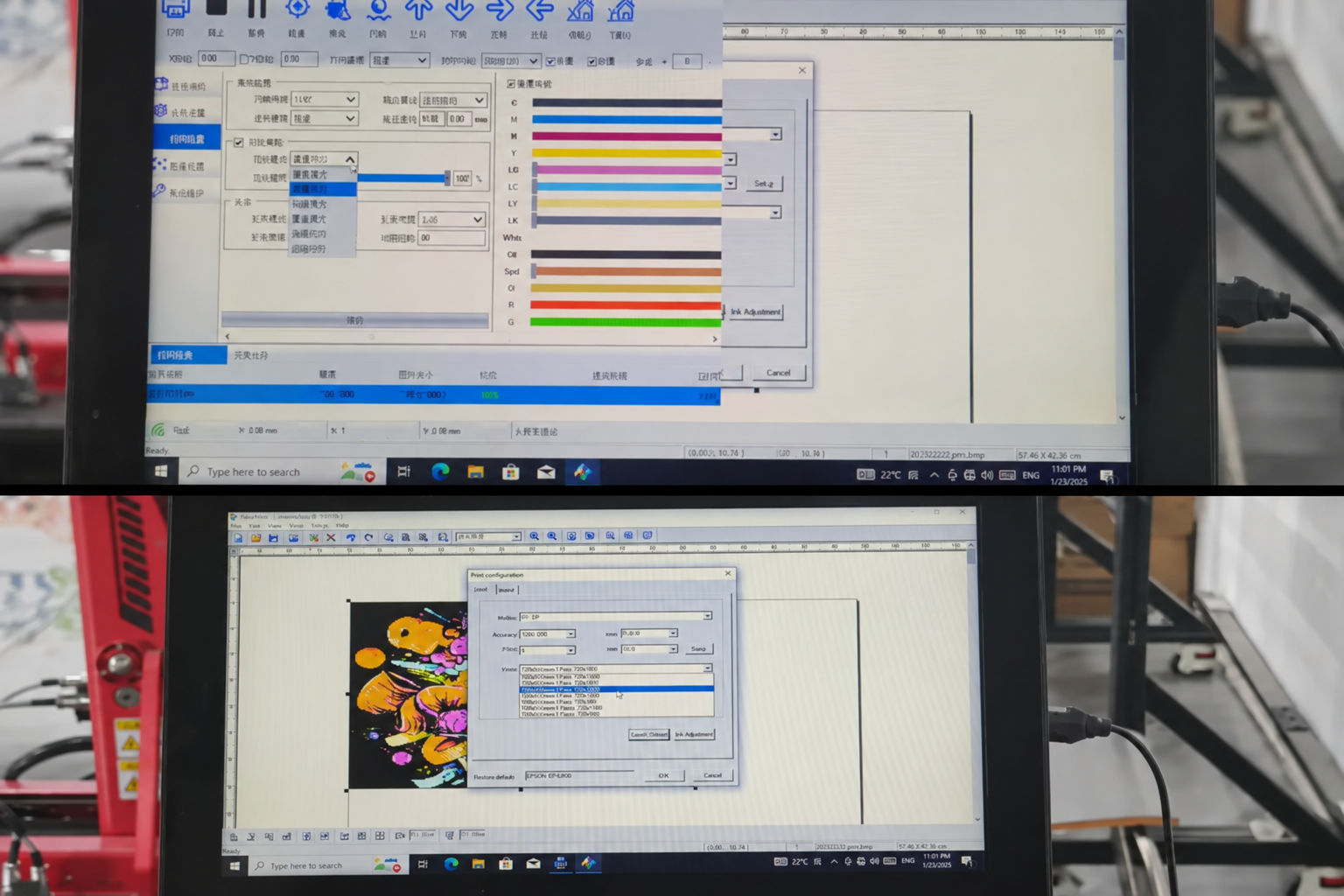
Can You Use Any RIP With a Wall Printer?
Usually not.
Wall-printer RIP software needs to work with the printer's:
Controller
Driver
Firmware
Printhead configuration
Ink channels
White-ink workflow
A RIP may support hundreds or thousands of conventional printers without supporting your specific wall printer.
So do not purchase another RIP simply because it is famous.
First ask:
Does it officially support this exact printer configuration?
For most first-time buyers, the safest choice is usually to start with the RIP and control software already tested by the machine supplier.
You can consider changing software later if you have a specific production need.
Conclusion
What software does a wall printer use?
Most professional systems rely on three software layers:
Design software prepares the artwork.
RIP software converts the artwork into printer-ready data and manages color, resolution, passes and white ink.
Printer control software operates the machine, sensors, movement, calibration and actual printing.
You do not necessarily need the most expensive software available.
You need software that works reliably with your exact printer and supports the jobs you intend to sell.
Before buying a wall printing system, confirm:
RIP name and version.
License terms.
Supported file formats.
White-ink capability.
ICC profiles.
Control software.
Technical support.
Most importantly, ask the supplier to process and print one of your own files from beginning to end.
That is the simplest way to confirm that the software workflow is actually usable before the machine arrives.
If you are comparing wall printer software or are unsure whether MainTop, FlexiPrint or another RIP fits your workflow, send WallPrintGear your machine configuration, printhead, ink setup and typical artwork. We can help you understand the RIP and control-software workflow before you choose the machine.